The One-Cable Desk: Building a Laptop Docking Setup That Just Works
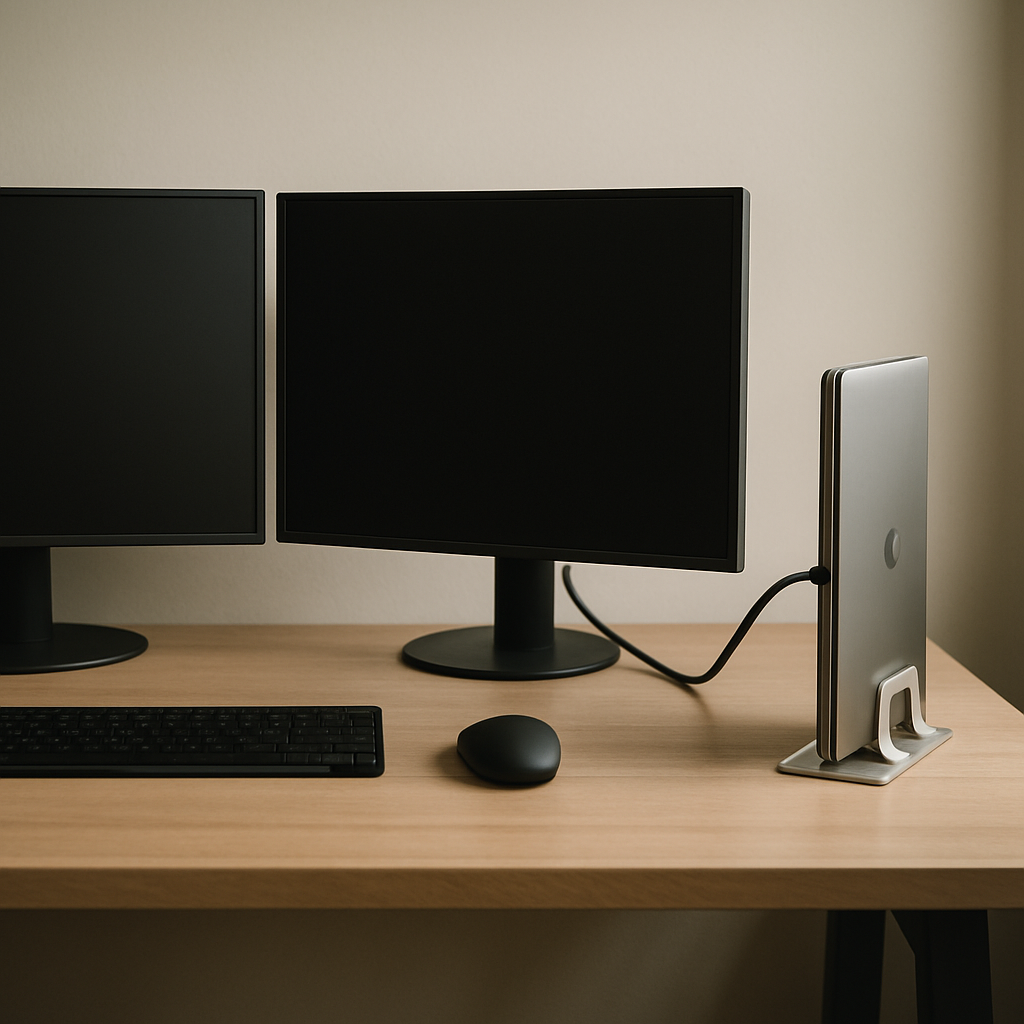
There is a particular kind of satisfaction in sitting down at your desk, plugging a single cable into your laptop, and watching two monitors, a keyboard, a mouse, wired internet, speakers and a webcam all spring to life while your battery charges. Then, at the end of the day, one gentle tug and you are mobile again. This is the one-cable desk, and once you have worked this way, going back to plugging in five things every morning feels barbaric. Here is how to build one properly.
Why Docking Setups Have Become Essential
Hybrid work made the laptop the default computer for millions of people, but laptops make miserable primary workstations on their own. The screen forces your neck down, the keyboard cramps your wrists, and the trackpad is no substitute for a proper mouse over an eight-hour day.
A docking setup resolves the contradiction. At your desk, your laptop becomes the brain of a full ergonomic workstation with external displays at eye height and proper peripherals. Away from the desk, it is still just a laptop. You get one set of files, one set of apps, and zero syncing headaches — the benefits of a desktop without owning two computers.
Thunderbolt, USB-C and the Compatibility Maze
The single most confusing part of this project is that identical-looking USB-C ports have wildly different capabilities. Before buying anything, work out what your laptop's port actually supports.
Thunderbolt (3, 4 or 5) is the gold standard. With around 40 gigabits per second of bandwidth, a Thunderbolt dock can drive dual 4K displays at 60Hz, charge your laptop at up to 100 watts or more, and still have headroom for fast external storage. If your laptop has Thunderbolt — look for the lightning bolt icon — buy a Thunderbolt dock and be done with it.
USB-C with DisplayPort Alt Mode is common on mid-range laptops. It can usually drive one external display natively; dual displays often rely on DisplayLink compression technology, which works but uses software drivers and some CPU.
Plain USB-C data ports cannot output video at all. Check your spec sheet before spending money — this catches people out constantly.
Mac users have one extra wrinkle: base-tier Apple silicon chips historically limited external display counts, so verify how many monitors your specific chip supports.
Choosing the Right Dock for Your Needs
Once you know your port, match the dock to your actual peripherals rather than buying the biggest one available.
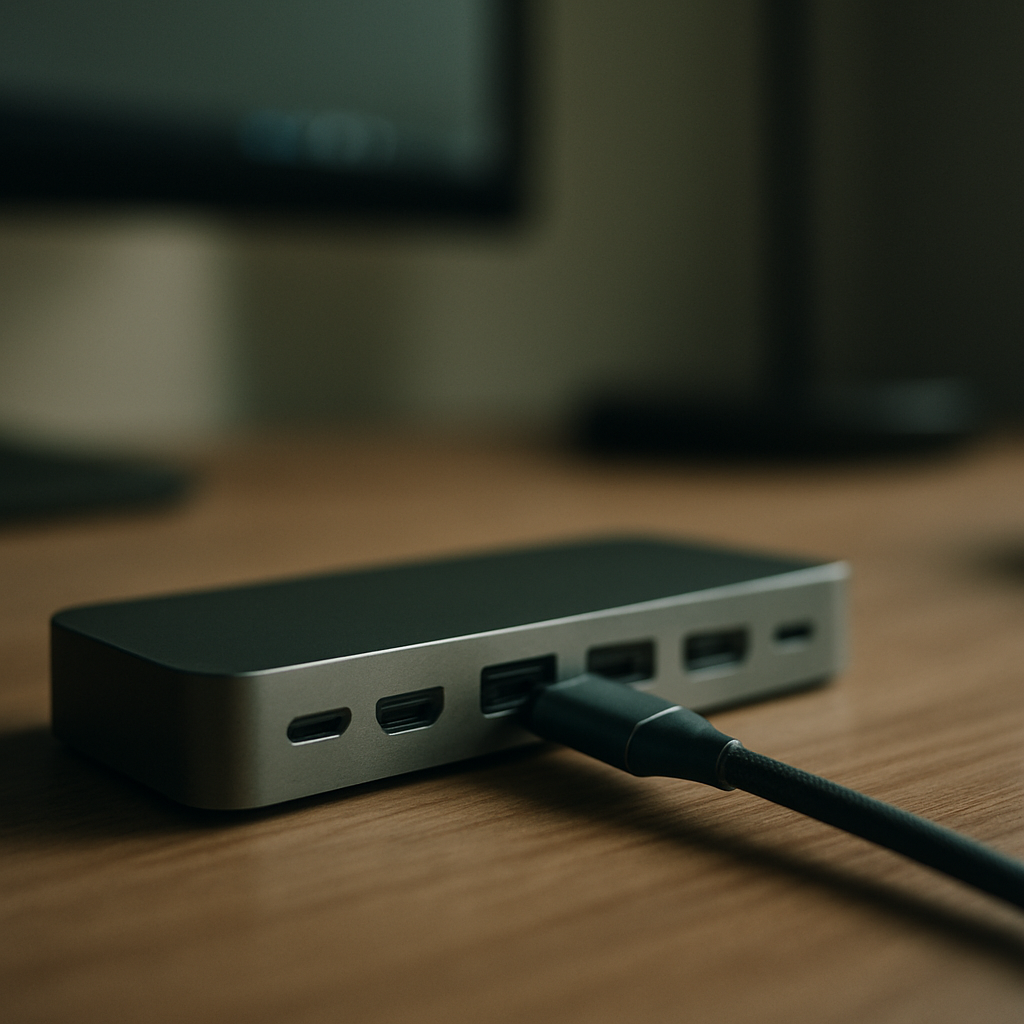
Count your needs honestly: how many displays and at what resolution, how many USB-A devices (keyboards, mice and webcams often still use it), whether you need Ethernet, an SD card reader, or a headphone jack up front. Then add one or two spare ports for the future.
Pay close attention to power delivery. A dock that supplies 65 watts will slowly drain a hungry 16-inch laptop under heavy load. For larger machines, look for 90 to 140 watts of upstream power.
Well-regarded brands include CalDigit, Anker, Kensington, Plugable and Dell, whose docks generally work fine with non-Dell machines. Budget no-name docks are where this project goes wrong: flaky firmware, monitors that flicker or fail to wake, and overheating are common complaints.
Hiding the Dock and Taming the Cables
A one-cable desk only feels magical if the other end of the equation stays invisible. The dock itself, its power brick, and the tangle of cables feeding your peripherals all need somewhere to live.
The classic solution is mounting everything under the desk: an under-desk tray or a simple cable raceway holds the dock and power strip, with cables run along the desk frame using adhesive clips or Velcro ties. Some people mount the dock to the underside of the desktop with strong Velcro so the ports remain reachable by feel.
Leave the single tethered cable emerging at a natural point near where your laptop sits, ideally through a grommet or held by a small magnetic cable holder so it never slides off the back of the desk. A laptop stand or vertical holder completes the picture — raising the laptop screen to serve as a third display, or tucking the machine away in clamshell mode entirely.
Small Touches That Elevate the Experience
A few refinements make daily docking genuinely seamless. Set your operating system to remember per-monitor arrangements so windows return to their places when you reconnect. Keep dock firmware updated, since manufacturers regularly fix sleep and wake bugs. And label the cable ends hidden under your desk — future you, troubleshooting at some point down the line, will be grateful.
Conclusion
A one-cable docking setup is one of those upgrades that pays for itself in small daily moments: no fumbling, no forgotten chargers, no ergonomic compromise. Identify your laptop's port capabilities, buy a reputable dock with enough power delivery, and invest an afternoon in cable management. The result is a desk that treats your laptop the way it deserves — as a full workstation that happens to be portable.